
HTTPS Setup
Starting with software version 2.7.0, there are two ways to enable HTTPS on your Mr Beam:
- Path 1: Use the certificate provided by Mr Beam (recommended for most users).
- Path 2: Upload your own custom HTTPS certificate.
Path 1 – Use the Mr Beam certificate
1. Download the certificate
Open the Recommended Setup page and download the certificate. Depending on your browser, you may need to click Keep in the download menu.
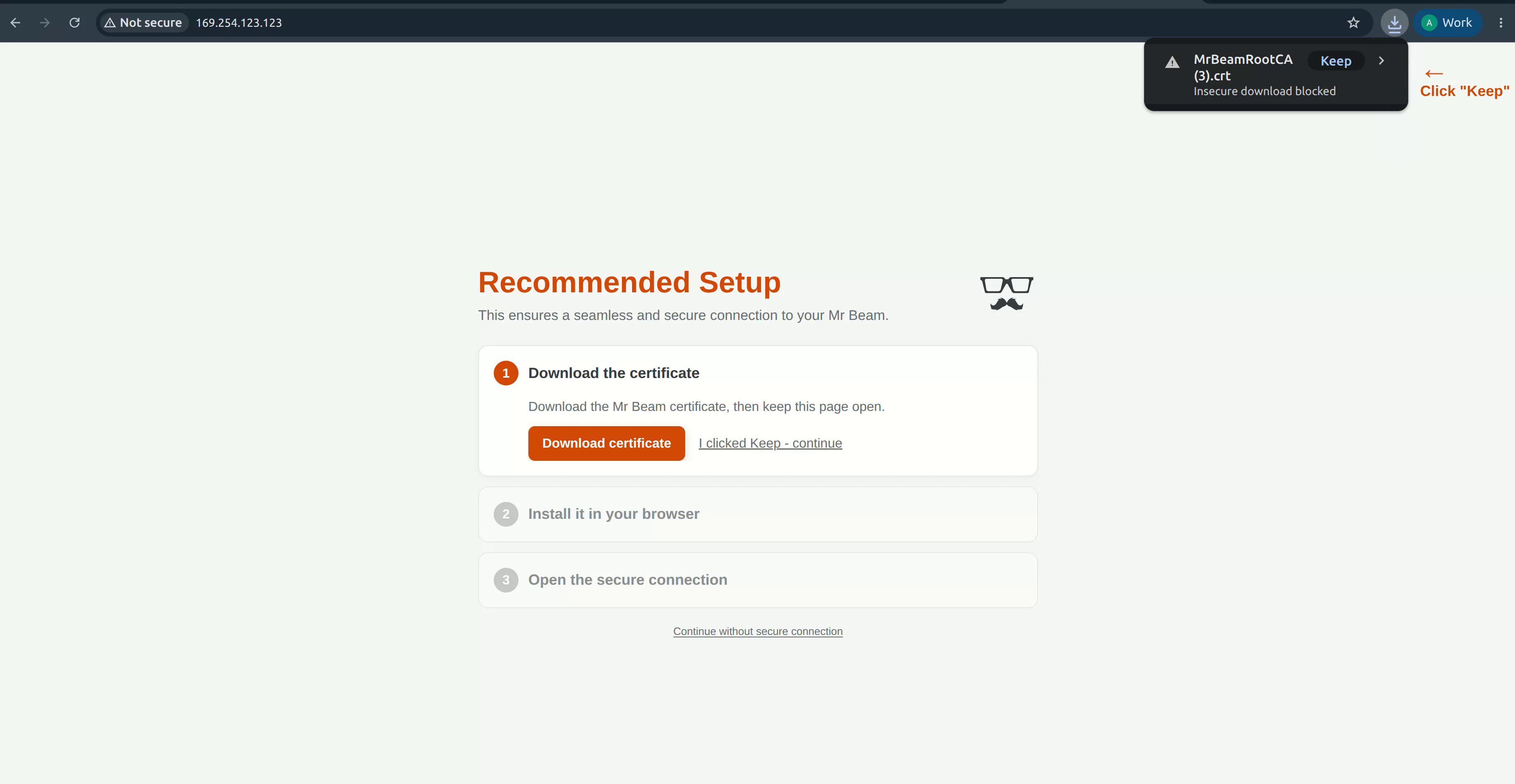
Click Continue to start the certificate installation.
2. Install the certificate
Your browser will open the Certificate Manager.
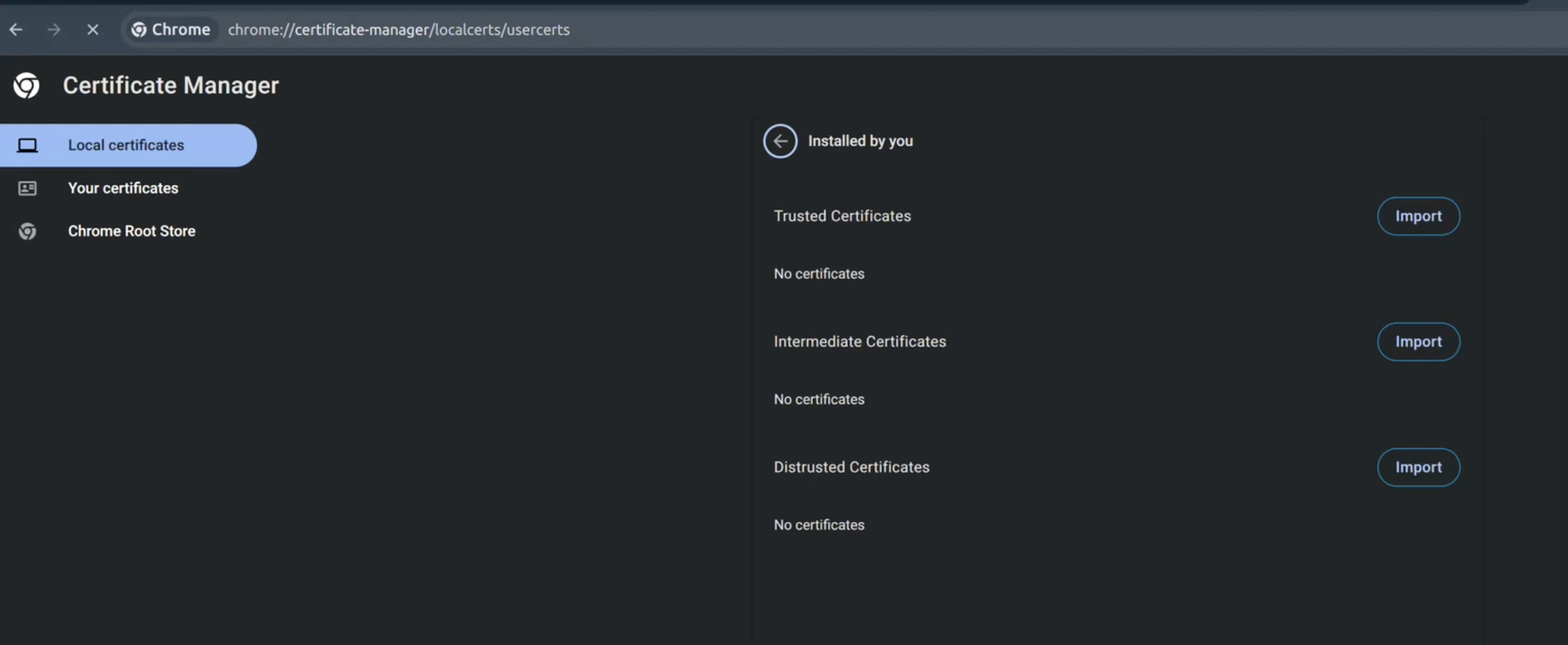
Follow the browser instructions to install the downloaded certificate.
3. Finish the setup
After the installation has completed successfully, click Continue to Mr Beam. You will be redirected to the login page and can now access your Mr Beam using the trusted certificate.
Note: If your browser still displays a certificate warning, clear the browser cache or perform a hard refresh before reconnecting.
Path 2 – Upload your own HTTPS certificate
If you already have your own HTTPS certificate (or would like to create one), you can upload it directly to your Mr Beam.
1. Open the Security Settings
Navigate to Settings → Security and click Advanced Options.
2. Upload your certificate and key
Select your certificate and private key:
- Certificate (.crt)
- Private Key (.key)
Click Upload SSL Files.
Tip: The uploaded private key must match the uploaded certificate. Otherwise, the upload will fail.
3. Reboot your Mr Beam
Wait until the Success confirmation appears, then reboot your Mr Beam to apply the uploaded certificate.
Note: If your browser still shows the previous certificate after rebooting, clear your browser cache or perform a hard refresh before reconnecting.
Creating your own certificate (optional)
If you need to generate your own ECDSA key and self-signed certificate, you can use OpenSSL:
openssl ecparam -name prime256v1 -genkey -noout -out MyCustom.key

openssl req -x509 -new -nodes -key MyCustom.key -sha256 -days 3650 -out MyCustomCA.crt
Reset to the default certificate
You can restore the factory SSL configuration at any time:
- Navigate to Settings → Security.
- Click Advanced Options.
- Click Reset to Defaults.
- Wait for the success confirmation and reboot your Mr Beam.
Note: Resetting removes your uploaded custom certificate and restores the default Mr Beam certificate.