
Tutorial: Mr Beam Calibrations
This article explains the calibrations that need to be performed in order to have a Mr Beam that:
- has a better camera preview – Lens Calibration
- has precise placement of designs over the placed object – Corner Calibration
Pre-requisites
Software
This article assumes that the BeamOS version used is v2.5.0 (Gamsbart) or above. The article will be updated to reflect any changes in upcoming versions.
The Mr Beam must be in Flat Material Mode and not in Rotary Mode!
Hardware
- Printout of the calibration board or use the board what comes with the Aruco Markers– Download here
- Advanced markers on left and right side – View product
- Clean working area
- Clean camera lens (use a wet cotton swab if needed)
- Safety lid open (camera shows red light)
- check the gassprings: the lid need to open correctly
If you are using:
- Height Extension: Keep the cutting frame inside the working area
- Rotary: Remove the rotary setup and the side racks and put the laserhead back in flat mode
Preparing for Calibration
When do I need to calibrate the camera?
- Marker positions have changed (e.g. peeled off and reattached)
- Deviation larger than 5 mm between preview and laser result
- installing the Aruco Markers after upgrading to BeamOS 2.0
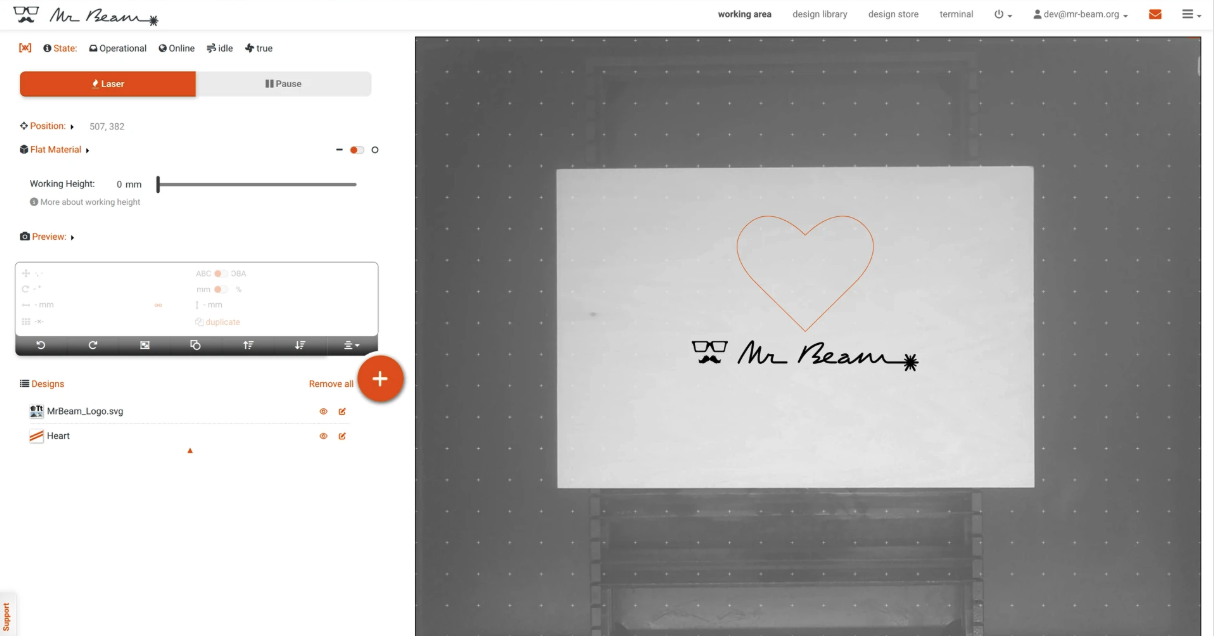
When switched on and with an open lid, Mr Beam should display a black and white image of the working area. This image is suitable for positioning, but a slight offset of up to ±5 mm is normal.
How do I calibrate the camera lens?
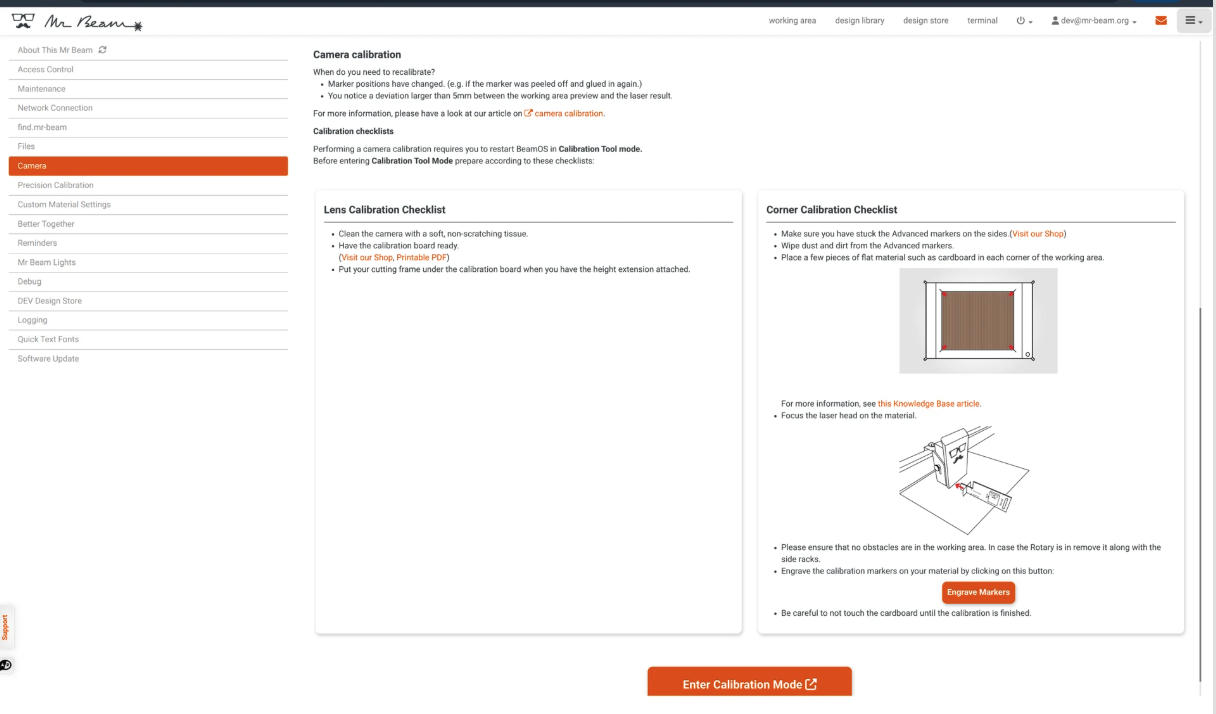
- Place flat material (e.g. cardboard or a post it when using the Height Extension) in each corner of the working area
Tip: Use thin material such as paper or flat cardboard. Ensure engraving is done at height 0 (bottom of the grid). To prevent slipping, use masking tape or adhesive paper.
- Adjust the laser head and focus it on the material
- Click “Engrave Markers” and select appropriate settings
- Laser the arrows in the corners
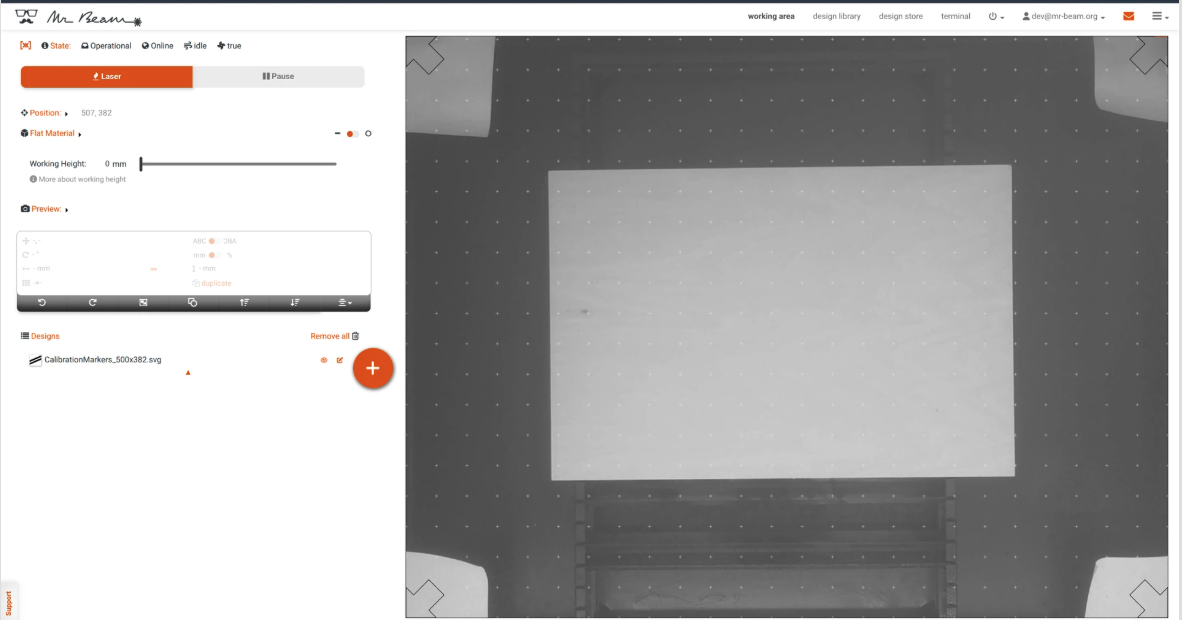
- Wait until engraving is finished
- Click “Enter Calibration Mode”
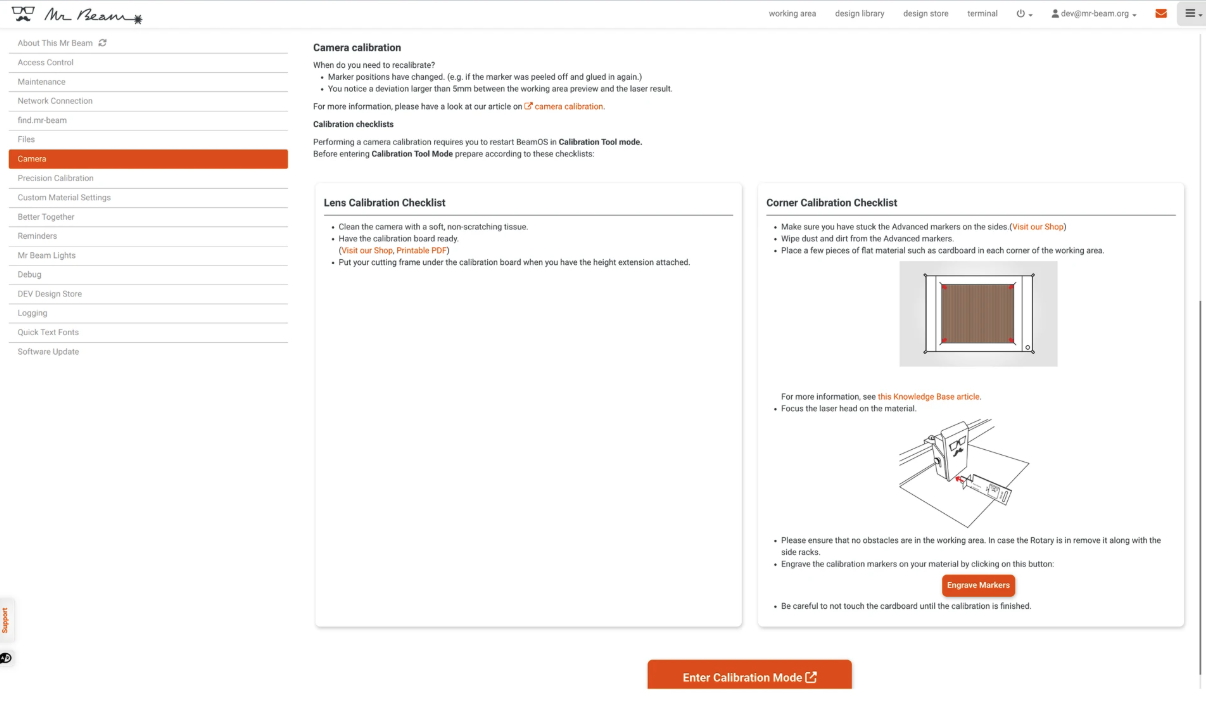
This will open a new tab. LEDs blink blue and then turn solid blue.

- The calibration tool loads and shows a preview
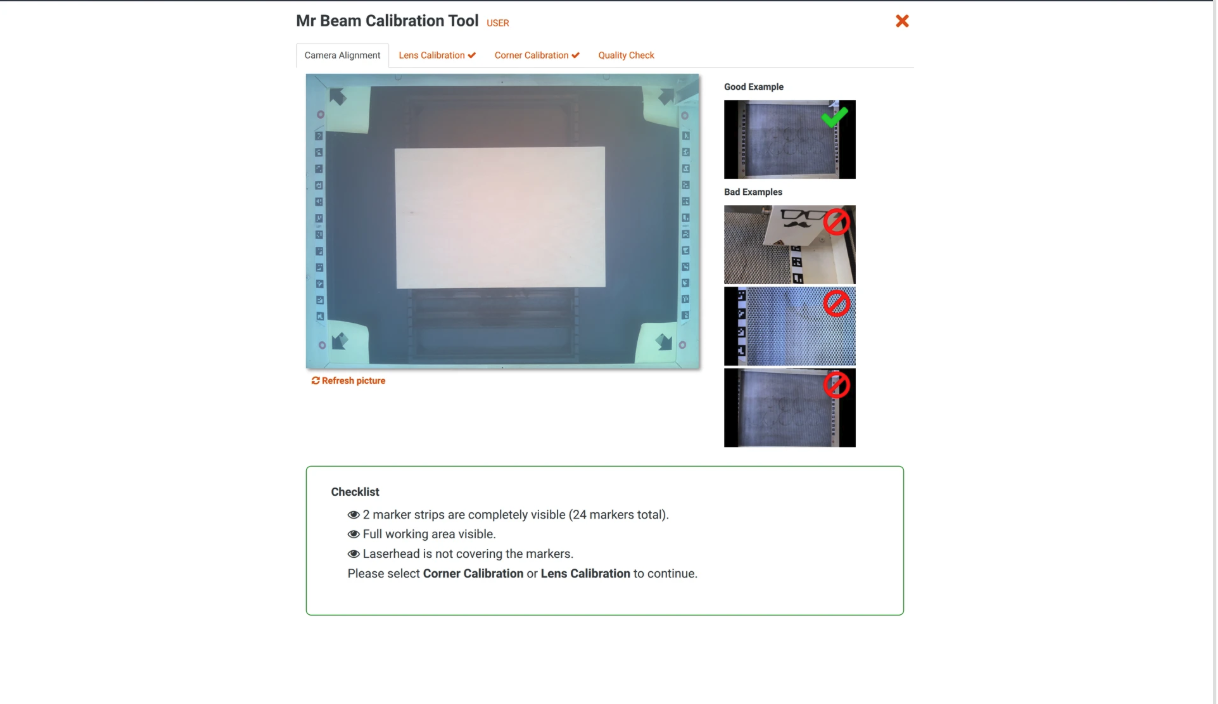
Note: Both calibrations must be performed in this order:
- Lens Calibration
- Corner Calibration
- Follow the checklist in the Camera Alignment tab
- Place the calibration board flat and straight
- Ensure:
- No dust on markers
- Board is pushed fully into the corners (very important)
- Press the button on the UI or the machine to take a picture
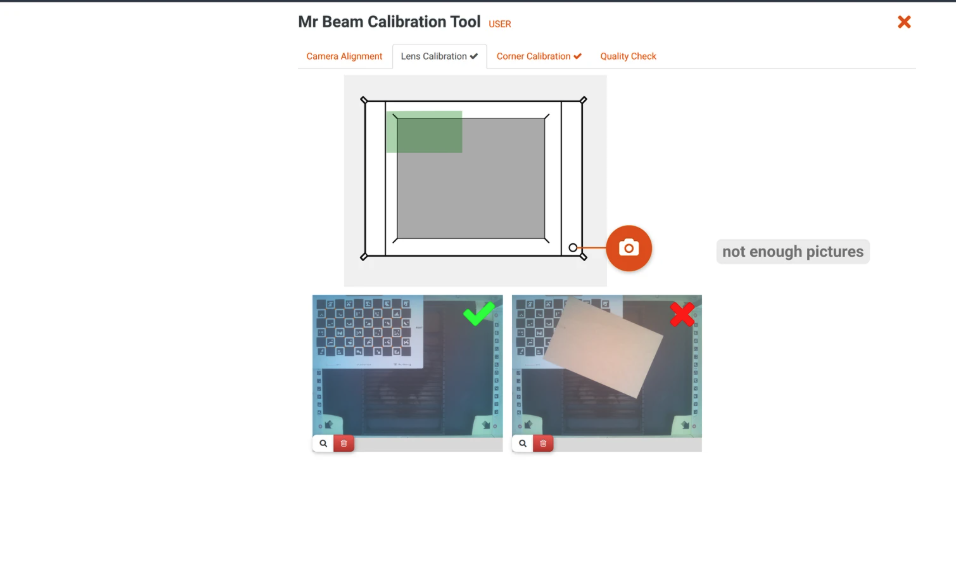
- A green checkmark indicates a good image
- You can enlarge or delete images
- Take 9 pictures from different positions covering the working area
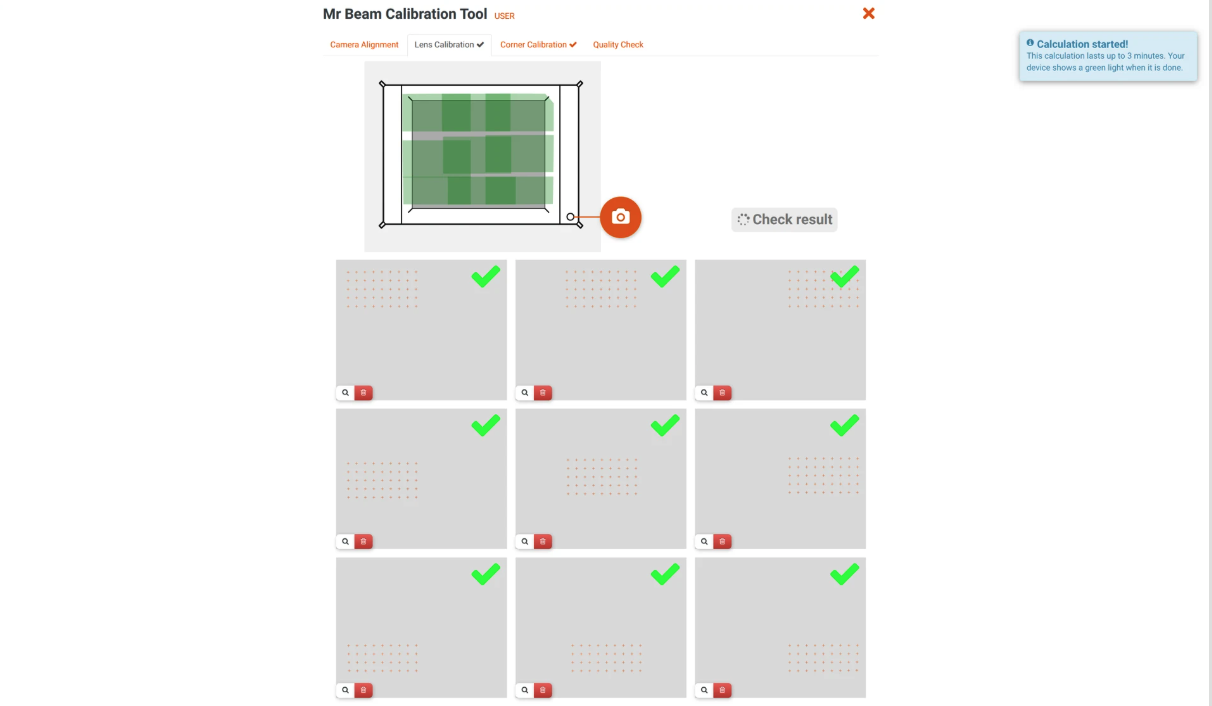
- After the 9th image, calibration starts automatically (up to 3 minutes)
- LEDs blink green and then turn solid green
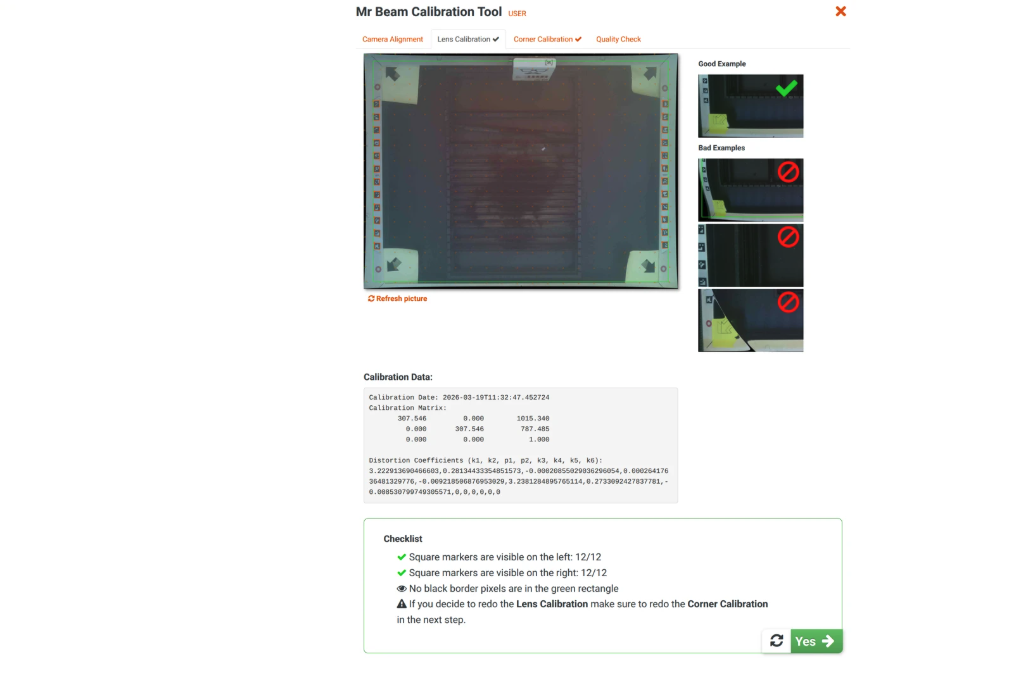
Important: Check for fish-eye distortion. If visible, click Redo and repeat the calibration.
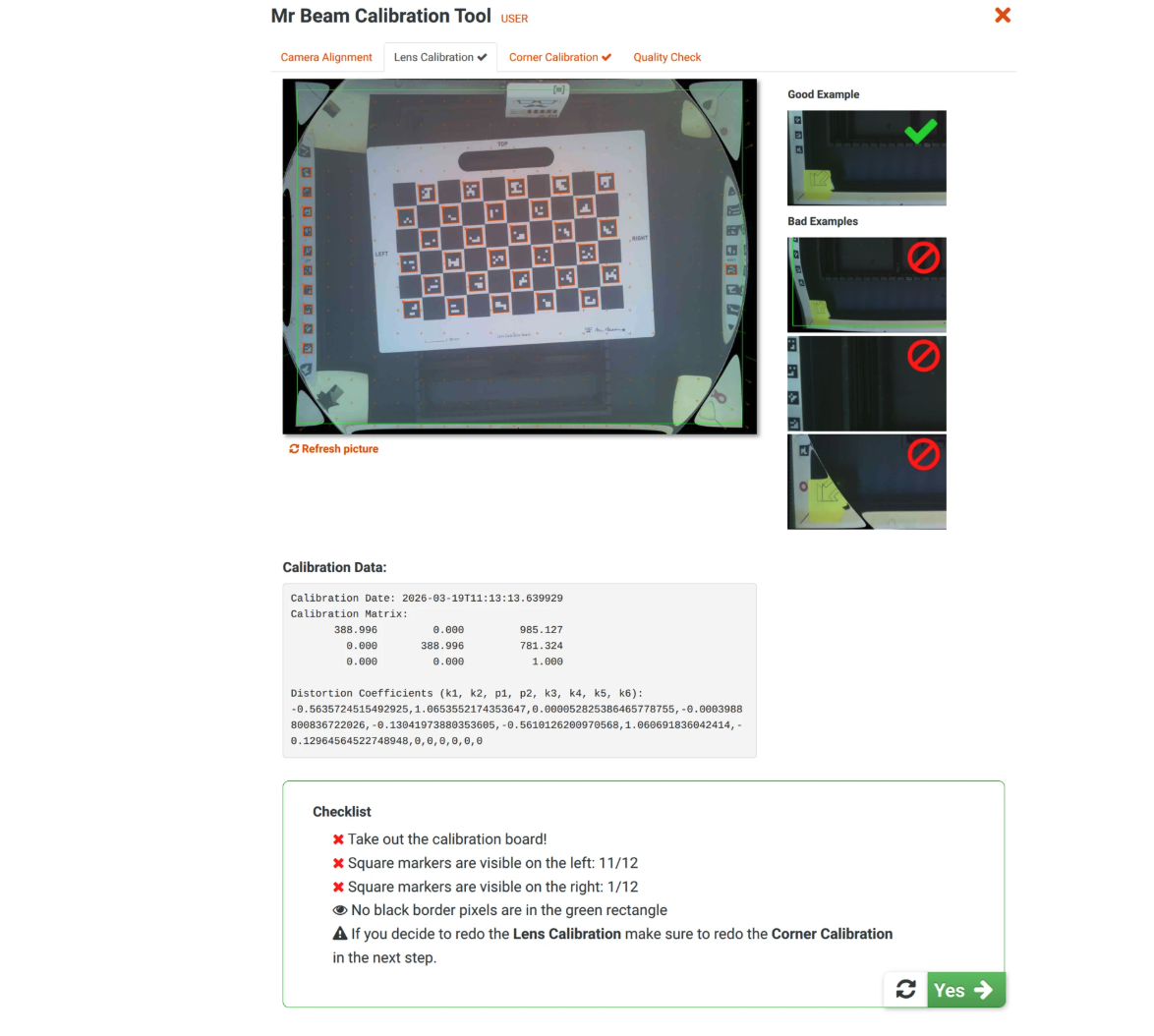
- Remove the calibration board
- Ensure all advanced markers are visible (12 per side)
How do I calibrate the corners?
- Click on the Corner Calibration tab
- Use the magenta arrows to click on the tip of each engraved arrow
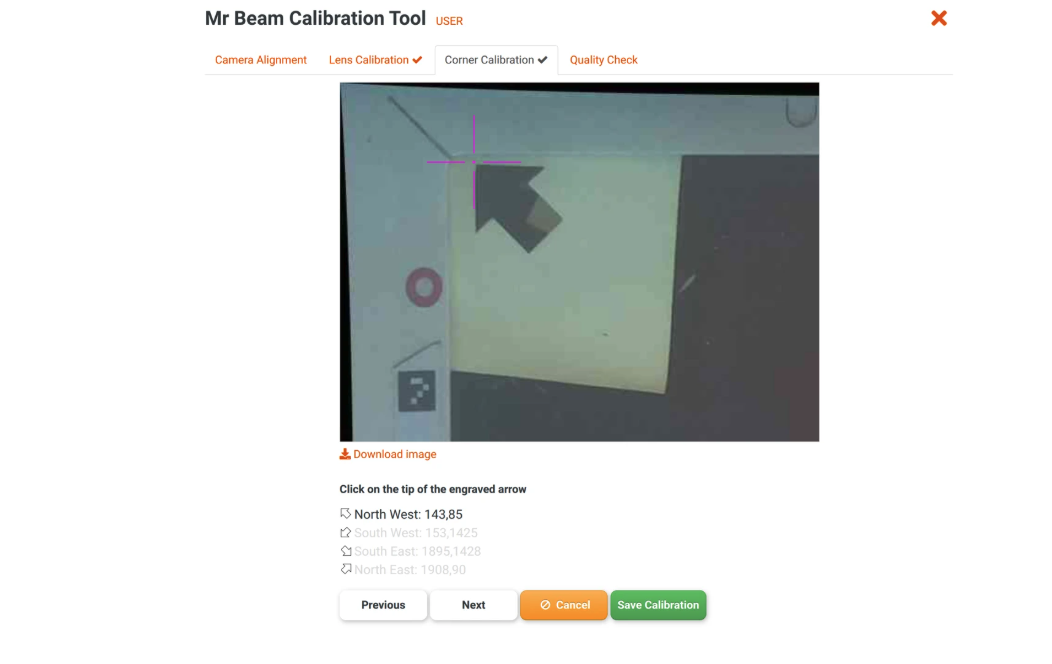
- Repeat for all 4 arrows
- Check the preview
- If correct, click “Save Calibration”, otherwise redo
Final steps
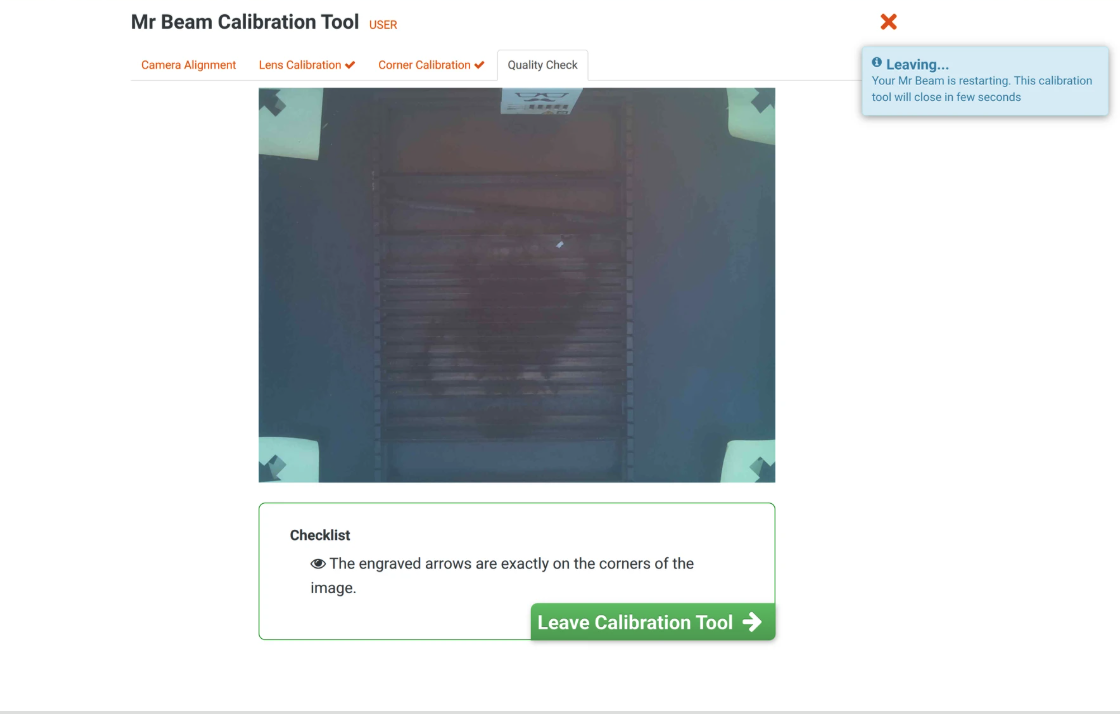
- The Quality Check tab shows the final preview
- If everything is correct, exit the calibration tool
- The system returns to the normal working screen and LEDs turn blue
- The Camera tab will show Advanced Mode with checkmarks
- This confirms successful calibration
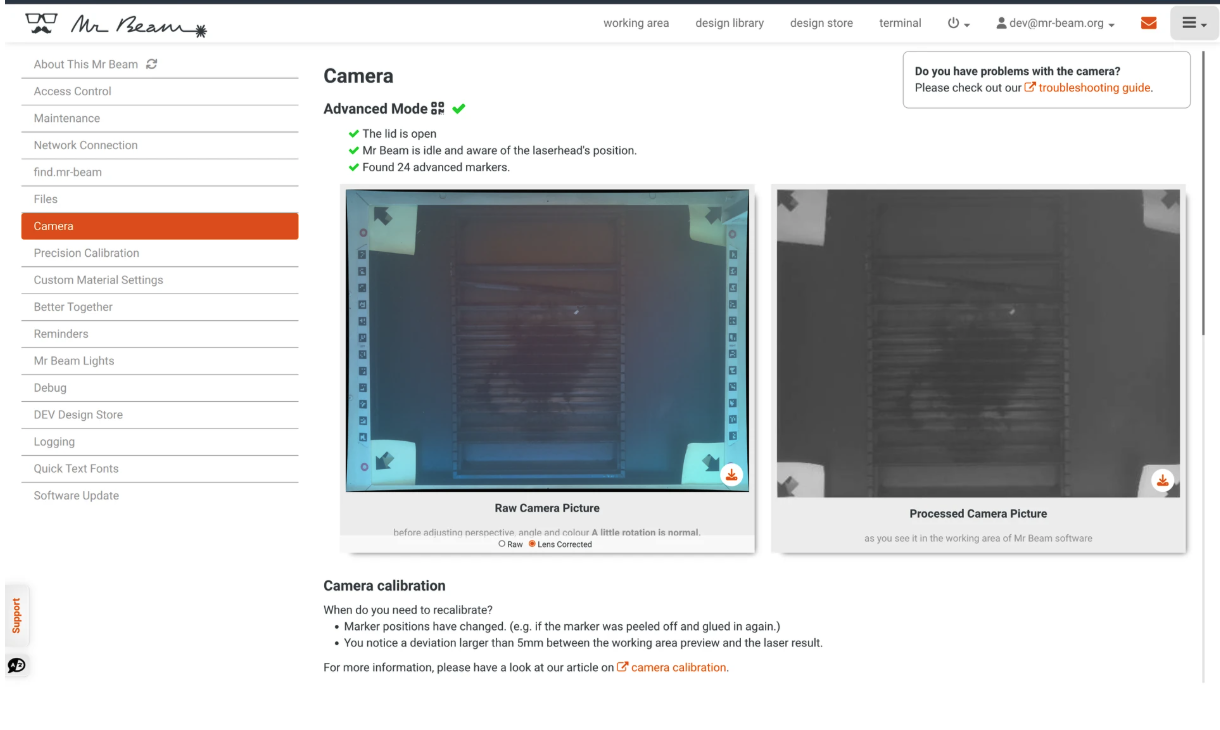
Your Mr Beam is now ready to use.
If you are having trouble or have questions please do not hesitate to open a support ticket: www.mr-beam.org/ticket